Explain what each symbol means in your room
“Ask a Neighbor” might mean checking an instruction before asking the teacher. “Work Together” might mean sharing ideas and agreeing on one response. A quick explanation makes the symbols much more useful later.
Place the symbol beside the task, and change it when the class moves from individual thinking to partner or group work.
Controls and settings
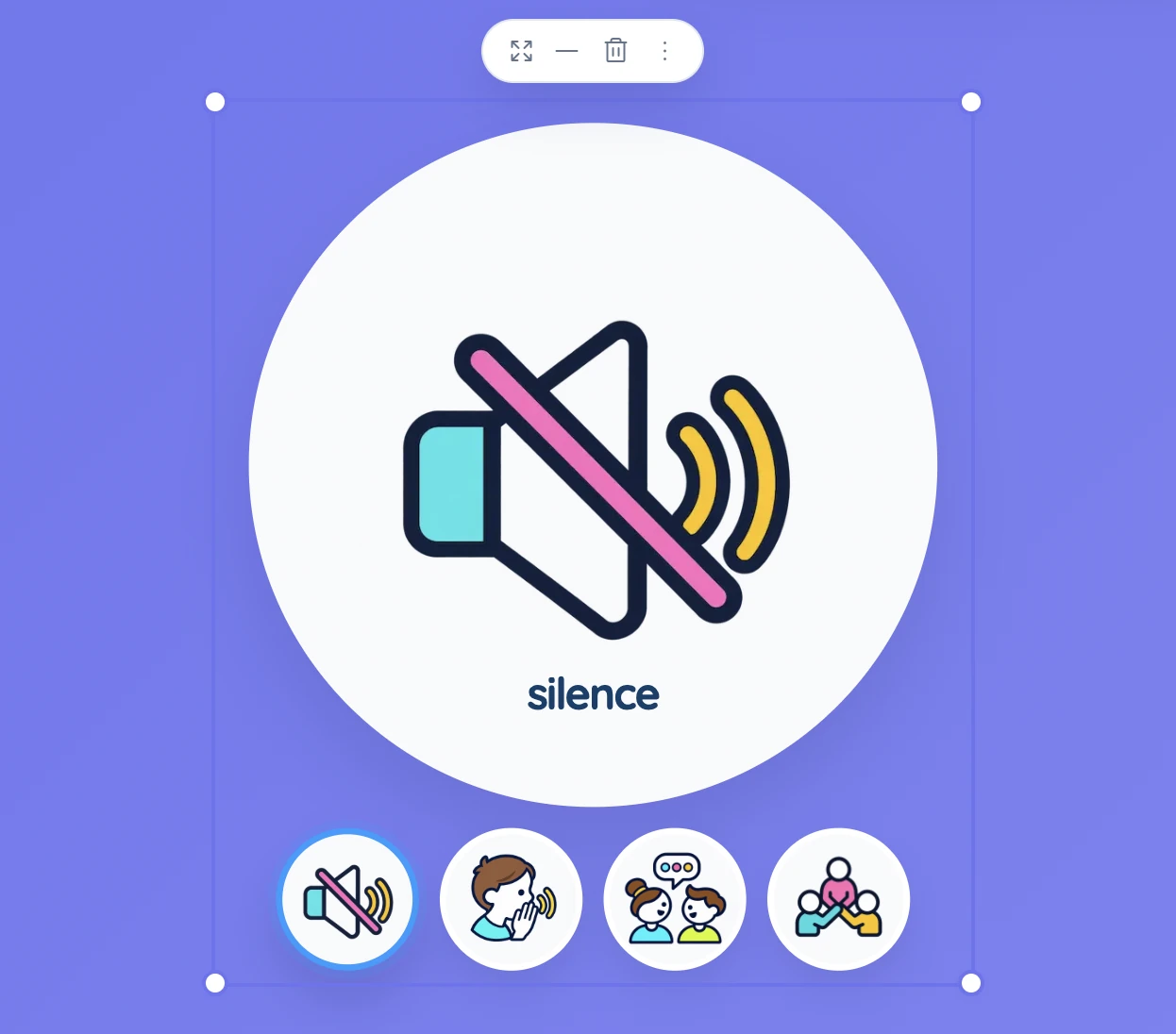
Choose one of the four small icons below the main display. The large illustration and label update to match your choice. The tool does not listen to the room or detect what students are doing; it simply shows the work mode you select. Move and resize the window so the icon and label are easy to see.
Set it up in Sabura
- Open Symbols from the More menu.
- Choose the work mode for the current activity.
- Put it beside the task and explain what that mode means.
Move from individual thinking to partner talk
Start with Silence while students work out an answer on their own. Change to Whisper when they compare with a partner, then Work Together when each pair must agree on one response.
Teaching tip
The first few times you use the symbols, model what each one looks and sounds like. After that, the icon can act as a quick reminder.