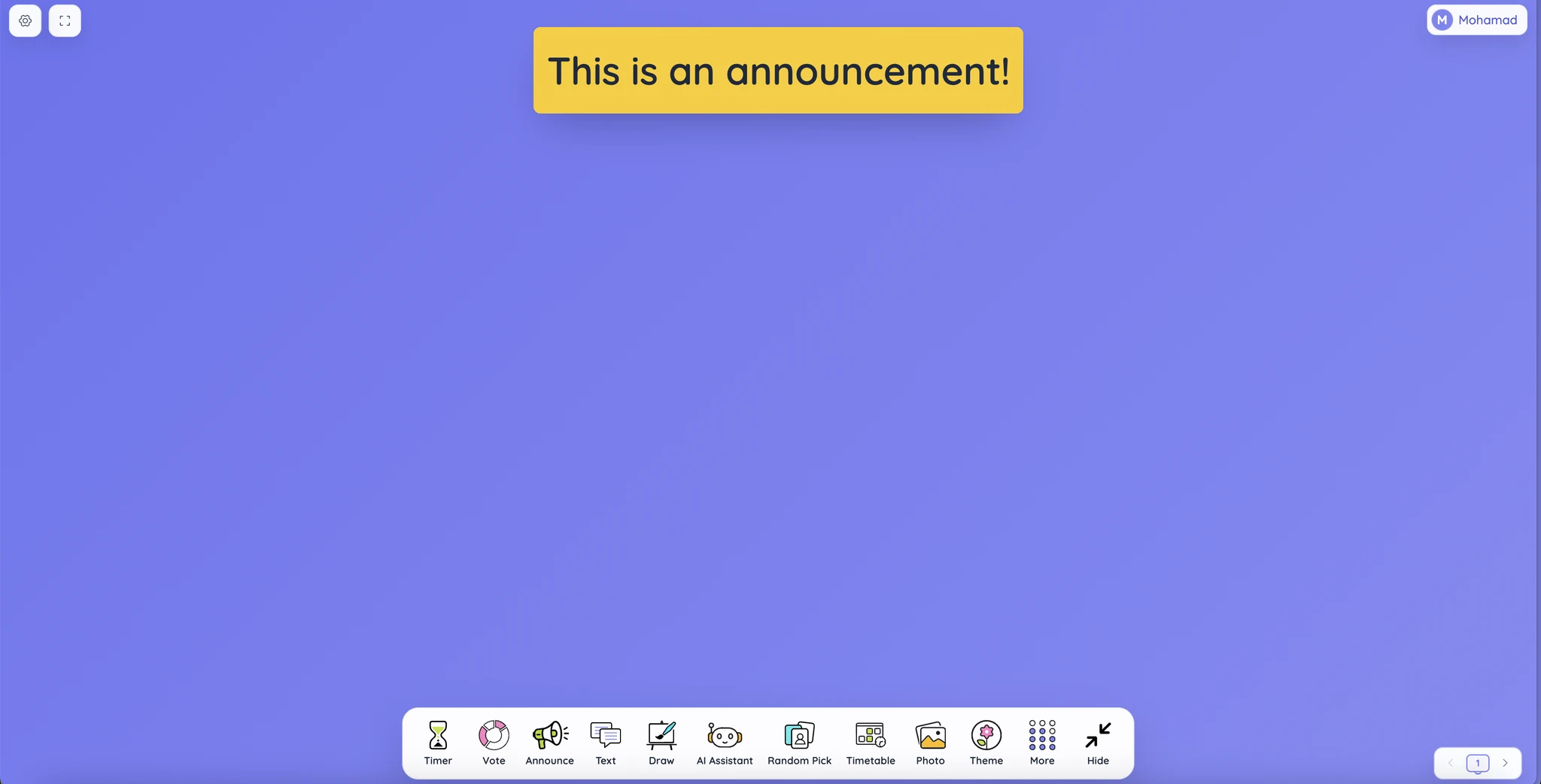
Lead with the action
Start with what students need to do: “Open your book to page 12” is easier to use than a long message with the instruction buried at the end.
Choose static text when students may need to reread the message. A moving ticker works better for a short reminder that is easy to understand at a glance.
Controls and settings
Enter your message, then choose static or ticker mode. You can adjust the font, weight, size, text colour, and background, or use a preset. Static messages include alignment controls. Ticker messages include a speed setting. Text direction can be automatic, left to right, or right to left. Check the preview before saving.
Set it up in Sabura
- Open Announce and enter the message in Settings.
- Choose static text or ticker mode and adjust the appearance.
- Put the message somewhere easy to read without covering the main task.
Give students something to do as they arrive
Before the lesson begins, display “Take out your book, read the title, and write one prediction.” Students can get started while you welcome the class or help anyone who needs support. Remove or replace the message once the lesson moves on.
Teaching tip
If the message is too long, shorten it rather than making the text smaller.