Open the page students need
Move to the relevant page before the discussion begins and make the window large enough to read. A long document may be useful to you, but students often need only one paragraph, diagram, or criterion at a time.
Controls and settings
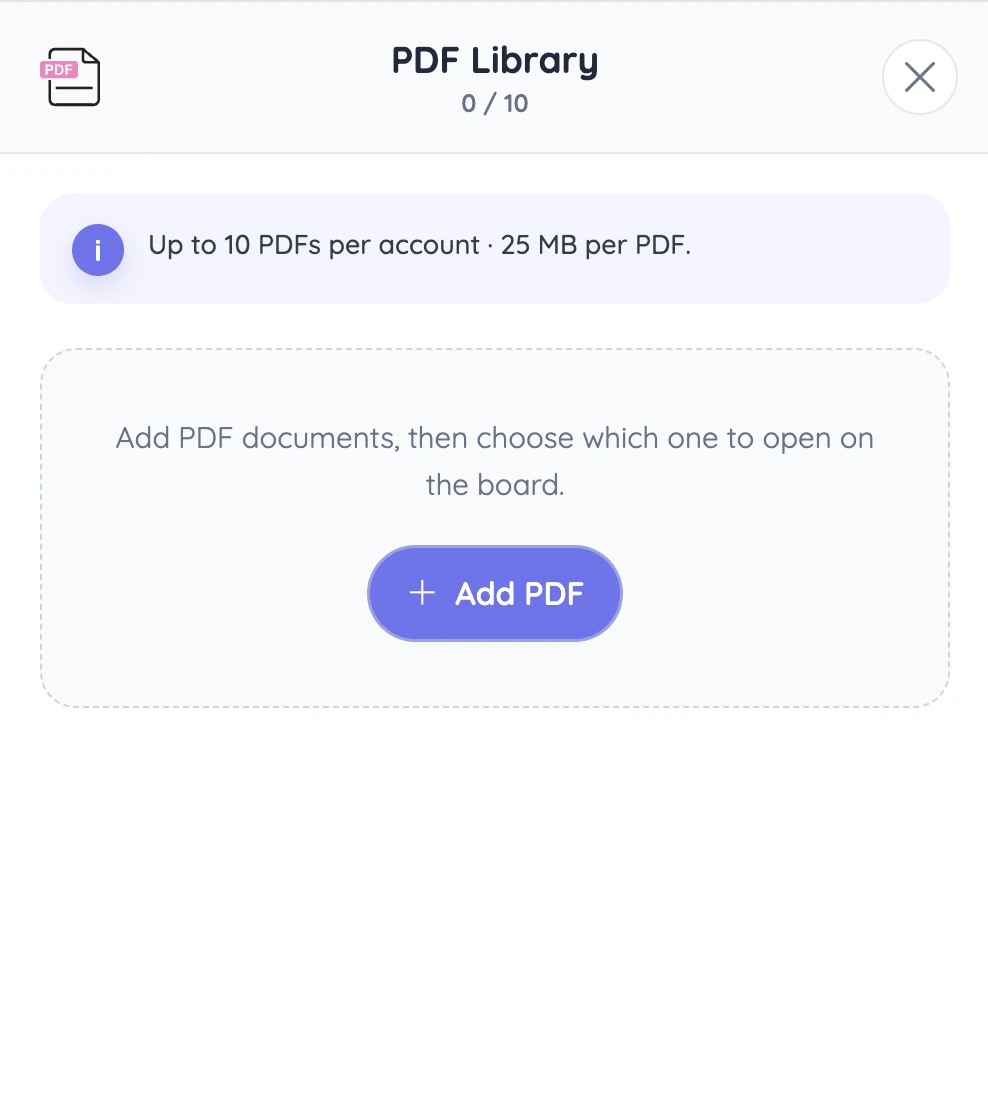
The PDF Library lets you upload a document or reopen one already saved to your account. Files can be up to 25 MB, and the library shows the allowance for your plan. Once the PDF is open, use Previous and Next to move through pages or enter a page number to jump directly to it. Resize the window to fit the material you are discussing.
Set it up in Sabura
- Open PDF Document from the More menu and upload or choose a file.
- Move to the page you need.
- Resize the viewer and place the task or question beside it.
Use a rubric before the final draft
Show one criterion from a writing rubric and place a sample response in Notes. Ask students which part meets the criterion and what still needs work. Keeping both on screen makes it easier to refer back to the exact wording.
Teaching tip
Check the smallest text from the back of the room. If it is hard to read, show a smaller section of the document at a larger size.