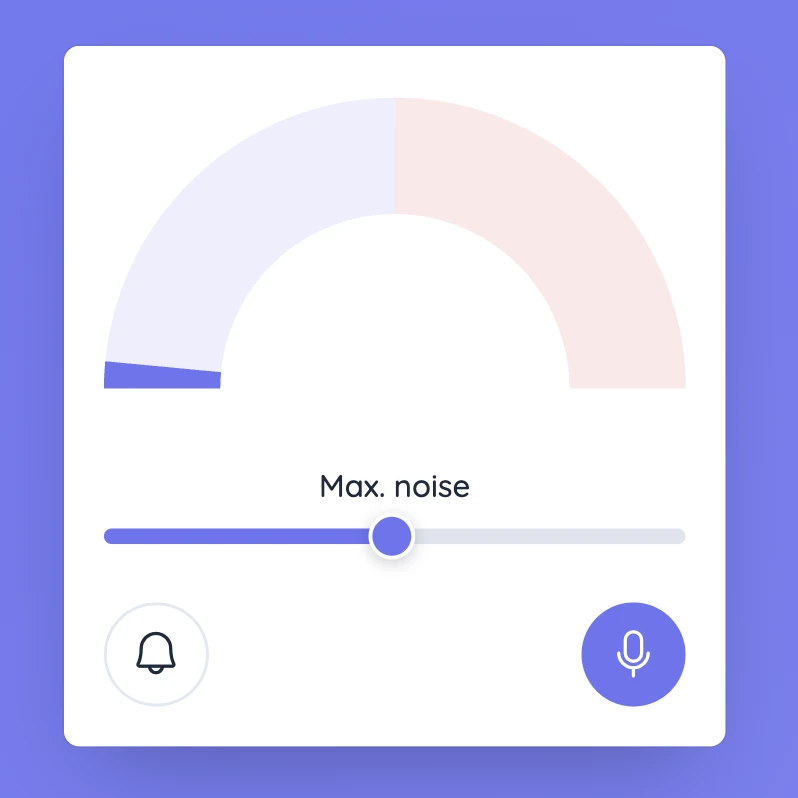
Set it up in the room where you will use it
Try the tool during normal classroom talk and adjust the sensitivity. A device close to one group or a speaker may react differently from one placed elsewhere in the room.
Use the meter as a general guide for the room, not as a way to judge an individual student.
Controls and settings
Sensitivity controls how strongly the meter reacts to the microphone. Max. noise sets the level that triggers an alert. In Settings, you can choose a microphone, select Hotel bell or Ping, preview the sound, and show or hide the limit counter. The counter can be reset for a new activity. The bell control turns alerts on or off, while Start or Stop Sound Level controls microphone listening.
Set it up in Sabura
- Open Sound Level from the More menu.
- Start the tool and allow microphone access.
- Adjust sensitivity and alerts during a quick practice with the class.
Keep partner talk at a workable level
Ask pairs to discuss a question loudly enough to hear each other without making it hard for nearby pairs to work. Keep the meter visible. If the level rises, check what is happening in the room before simply asking everyone to be quieter.
Teaching tip
A dropped object or a voice close to the microphone can cause a sudden spike. Look at the context before reacting to the reading.