Explain the task before students move
Tell students what each group needs to do and what they should have ready at the end. Randomly assigning names is only the first step; the group still needs a clear task.
Review the result before students change seats. Random groups are a useful starting point, but you can make adjustments when that is better for the students or the activity.
Controls and settings
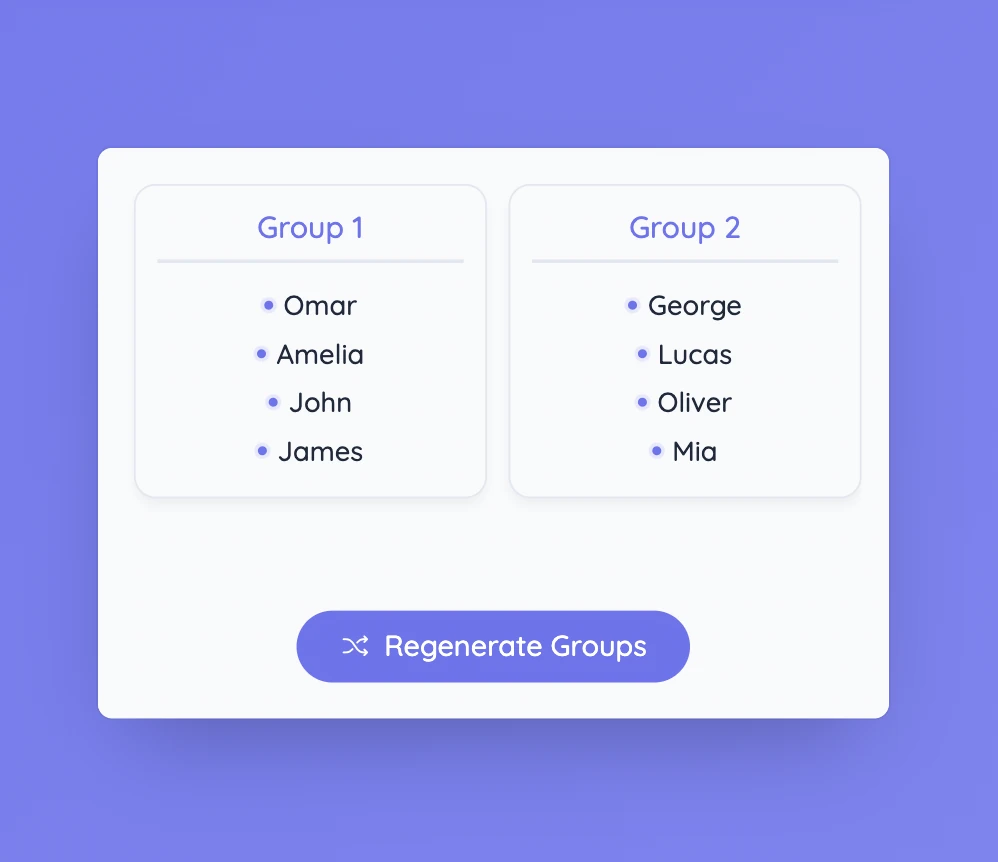
Enter one name per line or load a saved class list, then choose how many groups you need. The tool distributes the names and displays each group separately. Regenerate Groups creates a new random arrangement. The tool chooses group membership; you decide the roles, instructions, and expected result.
Set it up in Sabura
- Open Groups from the More menu.
- Enter names or load a saved class list.
- Choose the number of groups, generate them, and review the arrangement before students move.
Compare two ways to solve a problem
Create small groups and give each one a problem that can be solved in two ways. Ask them to compare the methods and decide which they prefer for this example, with a reason. One student can record the ideas and another can share the group’s conclusion.
Teaching tip
Tell students how they will share their work before they begin. It helps them decide what they need to record and explain.