Explain how points are earned
Before the first question, tell students what deserves a point. You might reward a correct answer, a clear explanation, or a useful correction. The rules matter more than the score display itself.
If a response brings up something worth discussing, pause the scoring and talk about it. The activity does not need to keep moving just because the scoreboard is visible.
Controls and settings
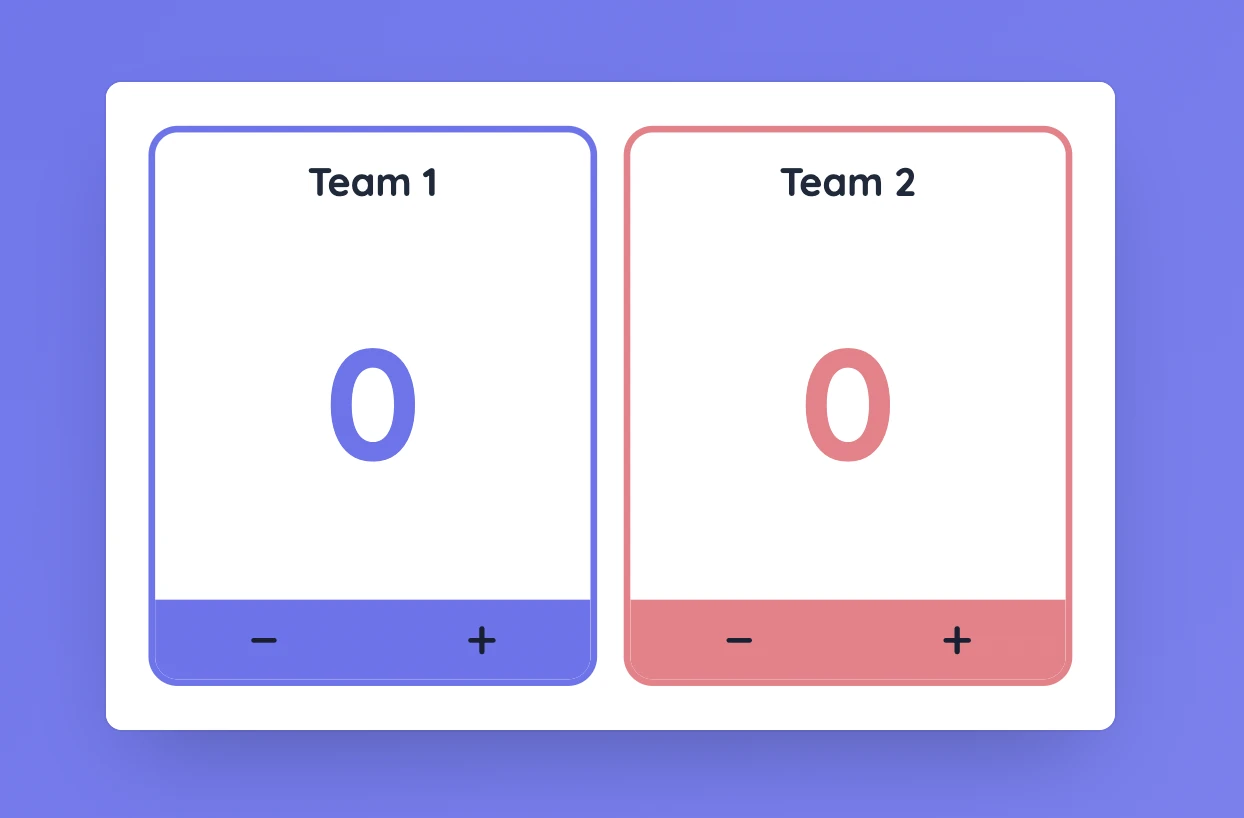
In Settings, add or remove teams, change their names and colours, and reorder them. The + and − buttons add or remove one point. You can also set a winning score; the first team to reach it is marked as the winner. Reset all scores prepares the board for a new round.
Set it up in Sabura
- Open Scoreboard from the More menu and add your teams.
- Adjust names and colours, and set a target if you want one.
- Add or subtract points as the activity runs.
A review game with second chances
Show a science statement with one mistake and ask teams to correct it and explain why. Award one point for the correction and another for the explanation. If an answer is incomplete, let another team improve it.
Teaching tip
Stop the scoring when a useful mistake deserves a proper explanation. Learning from the answer is more important than keeping the game moving.


%20rotate(6.84)'/%3e%3crect%20class='cls-3'%20x='1.58'%20y='9.99'%20width='43.08'%20height='50.91'%20rx='6.4'%20ry='6.4'%20transform='translate(-.15%20.1)%20rotate(-.24)'/%3e%3crect%20class='cls-4'%20x='18.46'%20y='19.37'%20width='43.08'%20height='50.91'%20rx='6.4'%20ry='6.4'/%3e%3crect%20class='cls-1'%20x='18.46'%20y='19.37'%20width='43.08'%20height='50.91'%20rx='6.4'%20ry='6.4'/%3e%3ccircle%20class='cls-2'%20cx='41.09'%20cy='39.96'%20r='7.28'/%3e%3cpath%20class='cls-2'%20d='M41.09,47.24c-6.79,0-12.35,5.24-12.87,11.9h25.74c-.52-6.66-6.08-11.9-12.87-11.9Z'/%3e%3c/g%3e%3c/g%3e%3c/svg%3e)