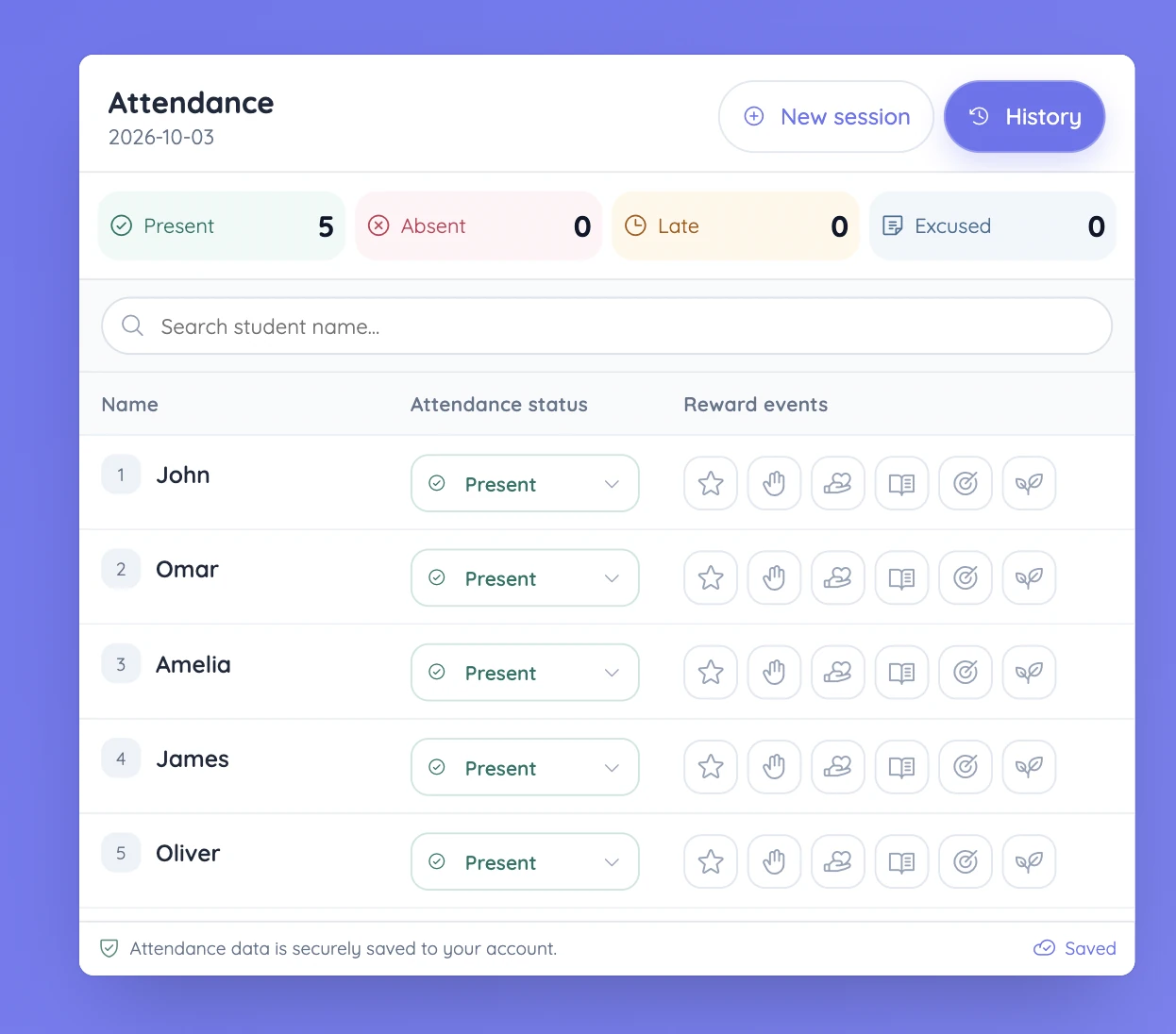
Check the class and session first
Make sure you are using the right list and date before you start marking students. If a status is unclear, verify it before you finish the session.
If the board is visible to the whole room, think about which individual attendance details are on screen while you work.
Controls and settings
Sign in to save sessions to your account. In Settings, choose or enter names, set a session title and date, choose reward icons, and decide whether a new session starts with everyone marked present. Students can remain Not marked until you confirm their status. Search helps you find a name quickly, History opens earlier sessions, and the saved indicator confirms changes have been stored. Reward events are separate from attendance status.
Set it up in Sabura
- Open Attendance and choose or enter your class list.
- Create the session and mark each student present, absent, late, or excused.
- Review the session and make sure it is saved.
Start the lesson while you take attendance
Put a short retrieval question in Notes for students to answer as they settle. Take attendance while they work, then move into the discussion once you have checked any uncertain names.
Teaching tip
If you cannot see a student clearly from where you are sitting, check before marking them absent.