Tell it exactly what you need
Include the topic, grade level, activity type, and what you want students to do. A specific request usually gives you a more useful draft than a topic name on its own.
Read the result before you add it to the board. Check the facts, wording, difficulty, and whether it actually fits the lesson.
Controls and settings
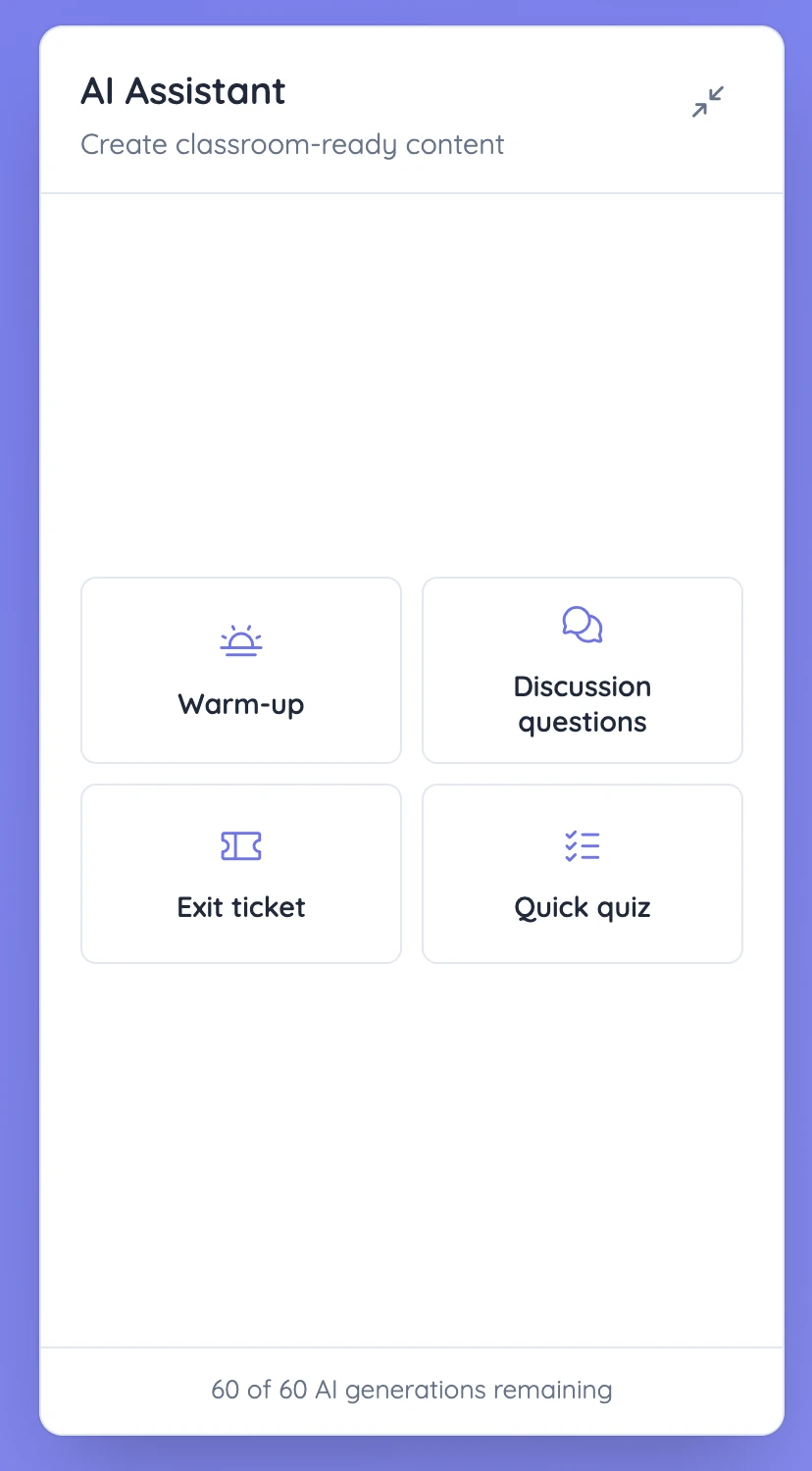
Choose a warm-up, discussion, exit ticket, quick quiz, or game. You can specify the topic, grade level, language, duration, and additional instructions. After generation, review the questions and any suggested answers before adding them to your board. The available usage depends on your account plan, and the tool shows the allowance that applies to you.
Set it up in Sabura
- Open AI Assistant and choose the type of content.
- Enter the topic and lesson details, then generate a draft.
- Review and edit the result before adding it to the board.
A focused exit ticket
After a lesson on equivalent fractions, ask for one question that requires students to explain why two fractions represent the same amount. Check the wording and suggested answer, then use the response to decide what needs revisiting in the next lesson.
Teaching tip
Ask for a small amount of content you can review properly. Two good questions are more useful than a long list you have not checked carefully.