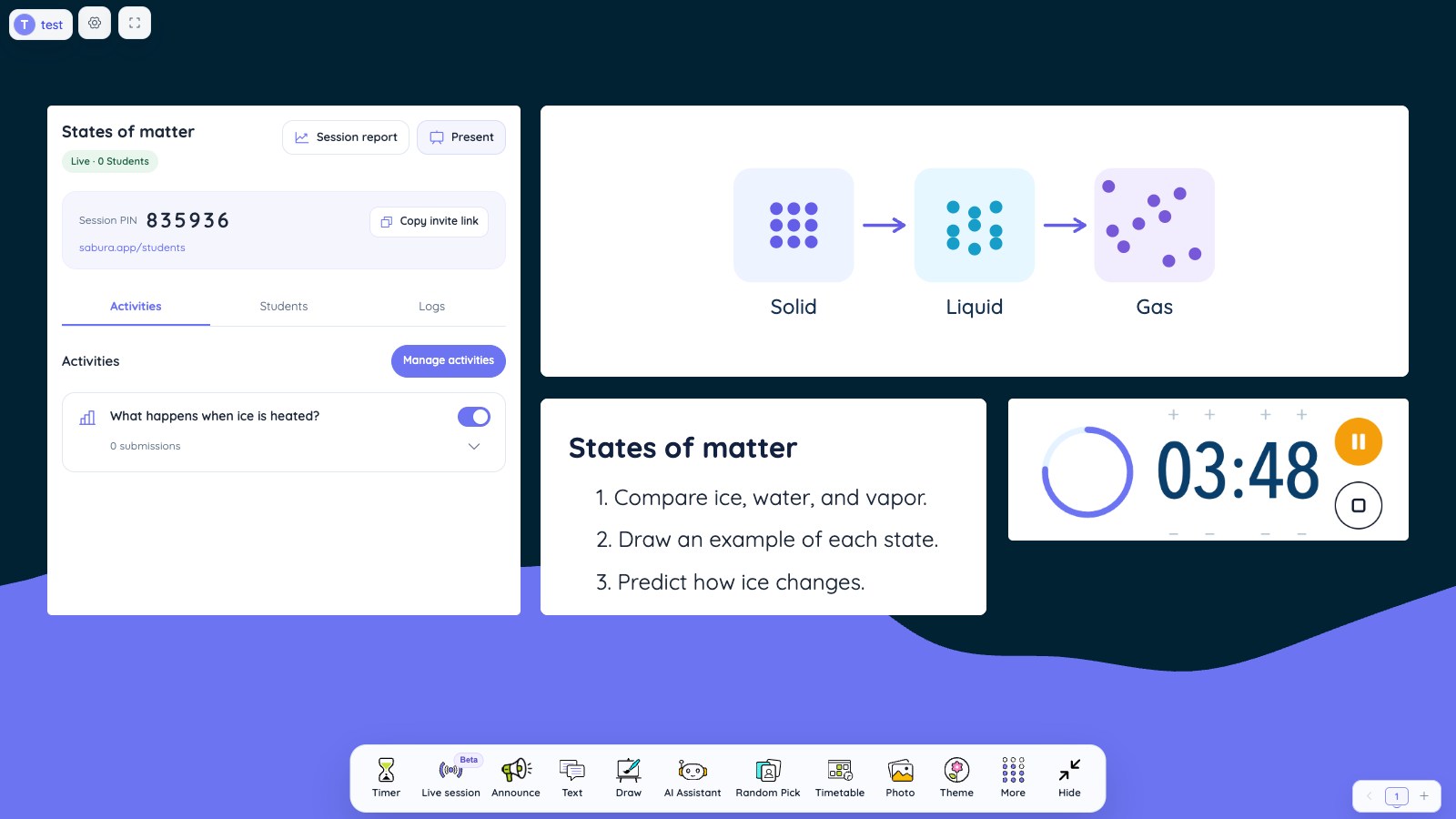
Set up your next lesson with instructions, a timer, and an interactive whiteboard on one screen.
Open the Sabura dashboardPicture the first five minutes of a typical lesson. Students are arriving, someone is looking for a pencil, a few are asking what they need to do, and you're trying to get everyone started.
Now imagine that when students walk in, they see a clear instruction on the classroom display:
Today's starter:
- Read the short paragraph on the screen.
- Write down two questions about it.
- Be ready to share one idea.
A countdown timer shows six minutes remaining, and a simple lesson schedule tells students what comes next.
Nothing complicated has happened. But the classroom screen is already doing something useful: making expectations visible so students can begin working with less direction.
This is one of the biggest advantages of using an interactive classroom screen. Instead of treating the classroom display as a place for slides alone, teachers can use it to organize lessons, explain ideas, manage activities, and encourage participation.
Here are seven practical ways to make that happen, with examples you can adapt for your own classroom.
What Is an Interactive Classroom Screen?
An interactive classroom screen is a digital workspace that brings teaching materials and classroom tools together in one visible place.
Depending on the software, teachers can display instructions, draw diagrams, open documents, run timers, select students, organize groups, and collect responses.
You might hear related terms such as digital whiteboard, interactive whiteboard, or online classroom screen.
There is an important distinction: an interactive whiteboard often refers to a physical touch-enabled display, while a browser-based classroom screen is software that can run on a regular computer and be shown through a projector or classroom TV.
For example, Sabura is a browser-based teaching workspace that combines digital whiteboard tools, classroom timers, lesson schedules, interactive activities, and more.
You don't need to purchase a new interactive display to get started. A laptop connected to a projector can be enough.
The real value comes from how you use the screen, not how much technology you put on it.
1. Make Classroom Routines Easier to Follow
Teachers repeat dozens of small instructions throughout the school day.
“Open your books.”
“Work with your partner.”
“You have five minutes.”
“What's our next activity?”
These reminders are necessary, but constantly repeating them can interrupt a lesson.
An interactive classroom screen helps by keeping instructions, expectations, and lesson stages visible.
For a writing lesson, you could display:
Independent writing — 10 minutes
- Choose one of the three writing prompts.
- Write an opening paragraph.
- Underline your main argument.
- Check your work against the success criteria.
Place the instructions beside a timer and a visual work symbol indicating independent work.
Students can refer back to the display whenever they need a reminder, while you move around the classroom and offer individual support.
In Sabura, the Notes, Timer, Schedule, and Work Symbols tools can be arranged together on one screen.
The key is to display instructions students can act on, rather than filling the board with lengthy explanations.
2. Help Students Manage Their Time
Time management is a skill students develop through practice.
A classroom timer can help make time visible, especially during independent tasks, group work, and transitions.
Imagine a science lesson with three activities:
- Five minutes to make a prediction.
- Twelve minutes to carry out an investigation.
- Eight minutes to compare results.
Instead of repeatedly announcing how much time remains, the teacher displays a countdown for each stage.
Students can check their progress without interrupting the activity.
A visual schedule adds another useful layer. It shows what happens next, making the lesson easier to follow.
A practical tip: Pair every timer with a clear goal.
“Eight minutes remaining” is useful, but “Eight minutes to finish your explanation and check your evidence” is much better.
Timers should support students, not rush them unnecessarily. If a class needs additional thinking time, the teacher can adjust the plan.
3. Explain Difficult Ideas With a Digital Whiteboard
Some concepts are easier to understand when students can see an explanation develop.
Think about teaching fractions, sentence structure, scientific processes, or geographical patterns.
A slide with a completed diagram may provide the right information, but drawing the explanation step by step gives students opportunities to predict what comes next.
Example: Teaching fractions
Instead of beginning with a formula, draw a rectangle and divide it into four equal sections.
Shade three sections and ask:
“What fraction of the whole is shaded?”
Then divide each section in half and ask whether the shaded amount has changed.
Students can see why 3/4 and 6/8 represent the same quantity.
A digital whiteboard lets you build the illustration while students follow the reasoning.
Sabura's drawing tool includes pens, highlighters, shapes, arrows, and different backgrounds, including grids and lined paper.
You can also position the whiteboard beside a PDF, photograph, or other teaching material.
That means the source material and your explanation can remain visible at the same time.
4. Give More Students a Chance to Participate
In many classrooms, a small number of confident students answer most questions.
Others may need more thinking time, prefer to discuss ideas before speaking, or feel uncomfortable volunteering in front of the class.
Interactive classroom tools can help teachers introduce different ways to participate.
For example, you could use a random name picker during a discussion, but only after giving everyone time to prepare an answer.
Alternatively, you could begin with a class vote before asking students to explain their reasoning.
Example: A history lesson
Display two historical photographs and ask:
“Which photograph provides stronger evidence of changes in daily life during this period?”
Students choose an option, then explain the evidence behind their choice.
With Sabura's live classroom activities, students can join using a link, PIN, or QR code and participate through activities such as voting and quizzes.
A vote is not the end of the discussion. It is the starting point.
You can ask students to compare different viewpoints, reconsider their answers, and support their thinking with evidence.
Interactive technology doesn't automatically create meaningful participation. Good questions and a supportive classroom environment still matter most.
5. Check Understanding Before Moving On
One of the hardest teaching decisions is knowing when students are ready to move forward.
After explaining a concept, a teacher might ask, “Does everyone understand?”
Usually, that question provides limited information.
A short multiple-choice question can reveal much more.
Example: A science lesson about ecosystems
Ask students:
“What is most likely to happen if the population of insects in an ecosystem suddenly decreases?”
Provide several plausible answers, including one that reflects a common misconception.
Students vote individually.
If many choose an incorrect answer, that tells you which relationship in the food chain may need further explanation.
If most answers are correct, you might follow up with a more demanding question that asks students to justify their reasoning.
This is an example of formative assessment: using evidence gathered during learning to decide what students need next.
With Sabura Live Sessions, teachers can also review participation and quiz results after an activity.
The purpose isn't to turn every lesson into a test. Sometimes one carefully chosen question is enough to identify a misunderstanding.
6. Make Group Activities More Organized
Group work can be valuable, but it can also create practical challenges.
Students need to know which group they're in, what their role is, how much time they have, and what they're expected to produce.
Without clear instructions, the first several minutes can disappear into confusion.
An interactive classroom screen can act as a shared reference throughout the activity.
Example: A geography investigation
Students work in groups to compare three possible locations for a new community park.
Each group must consider:
- Accessibility
- Environmental impact
- Available space
- Benefits to local residents
Use a group generator to assign students, display the task instructions, and place a countdown timer nearby.
A work symbol can show that collaborative discussion is expected.
When the time ends, each group presents its recommendation.
Sabura includes a Group Splitter, Work Symbols, a Sound Level Monitor, and an interactive Scoreboard.
The Sound Level Monitor can provide visual feedback about classroom noise without recording conversations.
Rather than rewarding the loudest or fastest team, you could recognize thoughtful explanations, collaboration, and careful use of evidence.
The screen helps organize the activity, leaving the teacher free to support learning.
7. Reduce Repetitive Lesson Preparation
Teachers often spend valuable planning time preparing the same types of materials:
- Starter questions
- Short quizzes
- Discussion prompts
- Group activities
- Exit tickets
Digital teaching tools can reduce some of that repetitive work.
For instance, you might prepare a classroom display with a question, a timer, and a reading passage before the lesson begins.
When teaching a new topic, an AI teaching assistant can help generate an initial set of questions or a short activity.
Sabura includes an AI Teacher Assistant that can draft lesson starters, discussion questions, quizzes, and exit tickets.
Suppose you're preparing a lesson about renewable energy.
You could ask for four questions suitable for your students, then review them, improve the wording, and select the most useful ones.
AI-generated material should always be checked for accuracy, age appropriateness, and curriculum relevance.
A further convenience is being able to reuse classroom layouts. Sabura Pro and its active seven-day trial support saved dashboards, while regular Free dashboards are temporary.
For recurring lessons, saving an effective arrangement can reduce setup work.
Example: A 40-Minute Lesson Using an Interactive Classroom Screen
Here's how these ideas might work together in a lesson about persuasive writing.
| Time | Activity | Classroom tools |
|---|---|---|
| 0–5 min | Respond to a discussion prompt | Notes + Timer |
| 5–12 min | Examine a model paragraph | PDF + Digital Whiteboard |
| 12–22 min | Draft an argument independently | Work Symbol + Timer |
| 22–32 min | Discuss and improve arguments in pairs | Group Instructions + Timer |
| 32–37 min | Vote on the strongest supporting evidence | Live Vote |
| 37–40 min | Complete an exit question | Notes |
Notice that the classroom screen changes throughout the lesson.
During the explanation, the teacher uses the digital whiteboard. During independent writing, only the instructions and timer need to remain visible. During the final review, the voting tool takes priority.
You don't need to keep every tool open throughout the lesson.
In fact, a simpler screen is often a more effective one.
For more examples of tool combinations, see the Sabura Classroom Tools Guide.
Common Mistakes to Avoid With Interactive Whiteboards
Using a digital classroom display effectively doesn't mean using as many features as possible.
Overcrowding the screen: A timer, multiple images, several notes, a clock, a video, and a scoreboard may compete for students' attention. Show only what matters for the current activity.
Using technology without a clear purpose: Before adding a tool, ask what classroom problem it solves. If it doesn't help students understand, participate, or stay organized, it may not be necessary.
Confusing activity with learning: Clicking an answer in a quiz can be engaging, but students also need opportunities to explain their thinking and apply what they've learned.
Forgetting accessibility: Use readable text, strong contrast, and simple instructions. Make sure students at the back of the room can see the important information.
Relying entirely on an internet connection: Keep a simple backup plan for essential activities. Some lessons can continue with a traditional whiteboard, printed materials, or verbal discussion.
The best digital classroom tools should support your teaching approach, not determine it.
How to Get Started With a Free Online Classroom Screen
You don't need to redesign every lesson.
For your next class, choose one routine you would like to improve.
Perhaps students regularly forget the instructions, transitions take too long, or you want a quick way to check understanding.
Start with a simple display containing the task instructions and a timer.
Once that routine feels comfortable, introduce a digital whiteboard, random name picker, or voting activity.
You can try these tools using Sabura’s online classroom screen.
Sabura offers its classroom tools on the Free plan, including the digital whiteboard, timers, grouping tools, and drawing features. Cloud dashboard saving and public live screen sharing have additional plan requirements.
For a step-by-step introduction, read How to Use Sabura: A Simple Guide for Teachers.
Frequently Asked Questions
Is an interactive classroom screen the same as a smart board?
Not exactly. A smart board typically refers to physical interactive display hardware. An online classroom screen is software that can run on a computer and be displayed through a projector, TV, or interactive whiteboard.
Can I use a classroom screen without buying new equipment?
Yes. If you already have a computer and projector, you can display browser-based teaching tools without purchasing a touch-enabled board.
Are online interactive whiteboards useful for primary school teachers?
Yes. Visual schedules, classroom timers, simple illustrations, and clear work instructions can be particularly helpful with younger learners. Choose tools and activities that suit their age and needs.
Are there free digital whiteboards for teachers?
Yes. Sabura offers a free browser-based digital whiteboard alongside other classroom tools. Regular Free dashboards are temporary, so teachers who need saved layouts should check the available plans.
Can I use Sabura for online teaching?
Yes. You can share your Sabura screen during a lesson on a video-meeting platform. Sabura provides the classroom workspace, while the meeting platform handles video and audio communication.
Final Thoughts: A Better Classroom Screen Starts With Better Questions
The biggest benefit of an interactive classroom screen isn't that it looks modern.
It's that students can see what they need to do, teachers can manage activities more easily, and the class has more opportunities to think, respond, and discuss ideas.
A timer won't teach time management on its own. A digital whiteboard won't guarantee understanding. And a classroom poll doesn't replace meaningful discussion.
But when these tools are used thoughtfully, they can make everyday teaching easier to organize.
Try Sabura and build a classroom screen around the needs of your next lesson. Start small, keep it clear, and add interactivity where it makes a real difference.