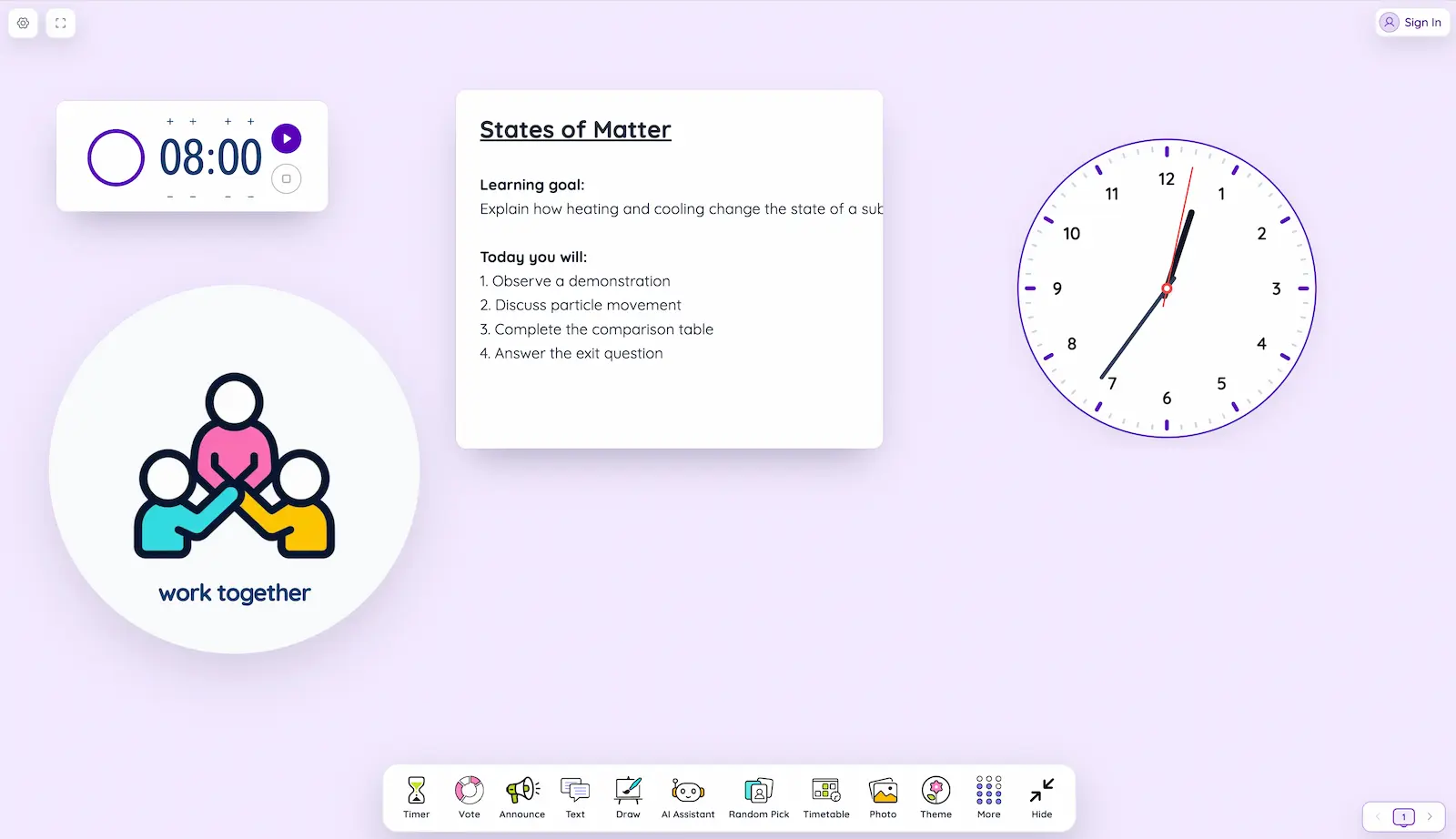
All classroom tools, including Seats and Canva, and all appearance options are available on Free. Live public screen sharing requires Pro or an active 7-day Pro trial. Free dashboards are temporary and disappear when you refresh or close the page. Pro and the 7-day Pro trial save unlimited dashboards; existing Legacy Free accounts keep their original saved screen.
Switching among a timer, slides, a poll, a name picker, and a worksheet can interrupt the rhythm of teaching. Sabura keeps those everyday tools in movable, resizable windows. The aim is not to fill the screen. It is to keep the information students need visible without leaving the lesson.
Choose a tool by the classroom problem
| Need | Best starting tool | Useful partner |
|---|---|---|
| Keep a task on time | Timer | Notes |
| Make lesson stages predictable | Timetable | Clock |
| Set a visible behaviour expectation | Work Symbols | Traffic Light |
| Check every student’s thinking | Live Vote | Whiteboard |
| Organize cooperative learning | Group Splitter | Sound Level |
| Display a source | Photo or PDF | Timer |
Planning, timing, and routines
1. Timer
A large countdown with an optional alarm. Use it for silent reading, independent practice, transitions, quizzes, or tidy-up time. Pair it with a short instruction so students know what “finished” means.
2. Stopwatch
Measures elapsed time rather than time remaining. It suits experiments, reading fluency, presentations, physical activities, and any task whose natural duration you want to observe.
3. Timetable
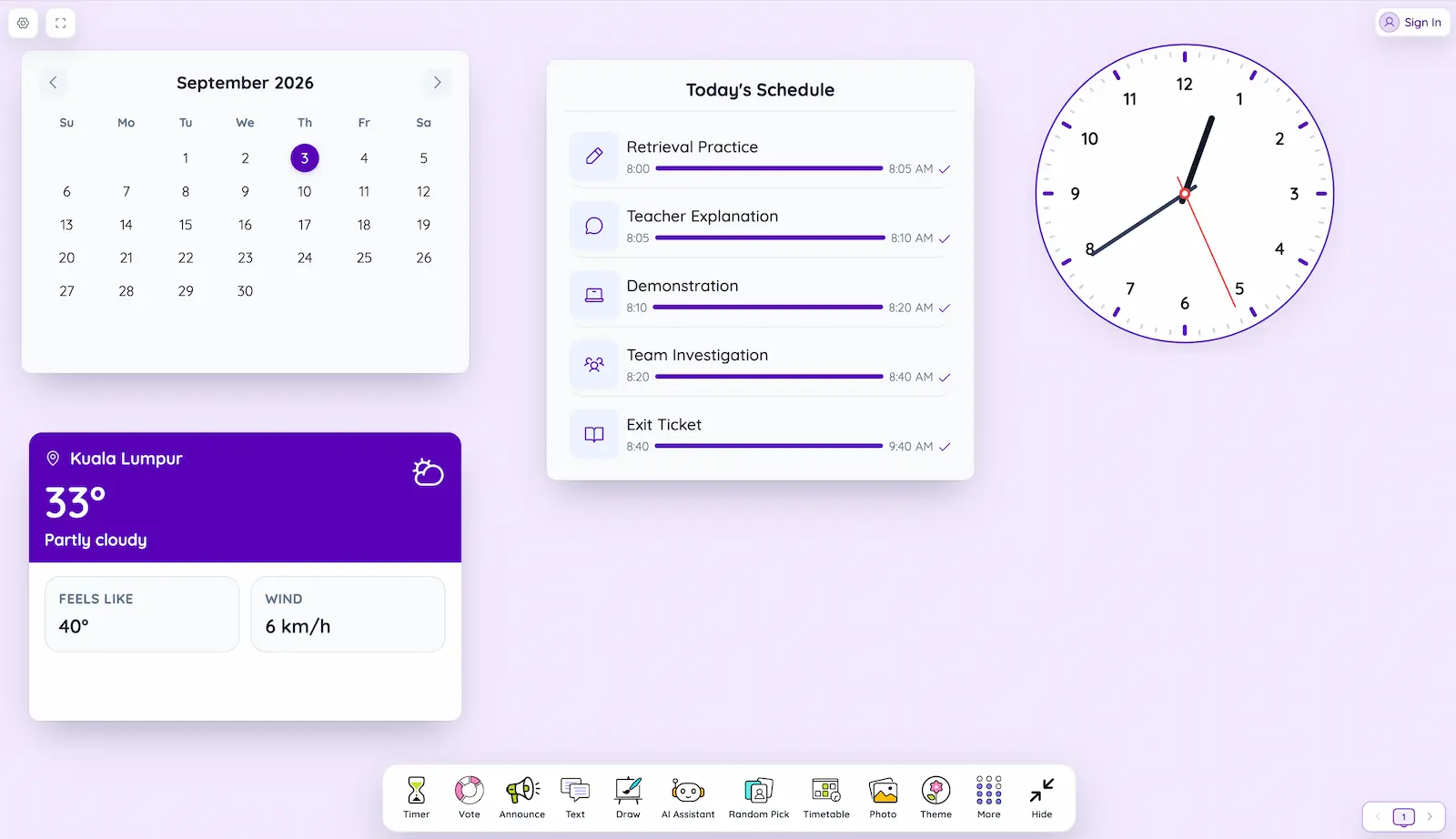
Turns a lesson into visible stages with times, progress, icons, and transition alerts. It helps students see what is happening now and what comes next.
4. Clock
Provides an always-visible time reference during tests, arrival, dismissal, presentations, or self-managed work.
5. Calendar
Shows a monthly calendar for morning meetings, project deadlines, assessment dates, and date-based learning.
6. Weather
Shows local conditions for daily routines, geography, weather vocabulary, data interpretation, or a science connection to the world outside.
Classroom management without constant verbal reminders
7. Traffic Light
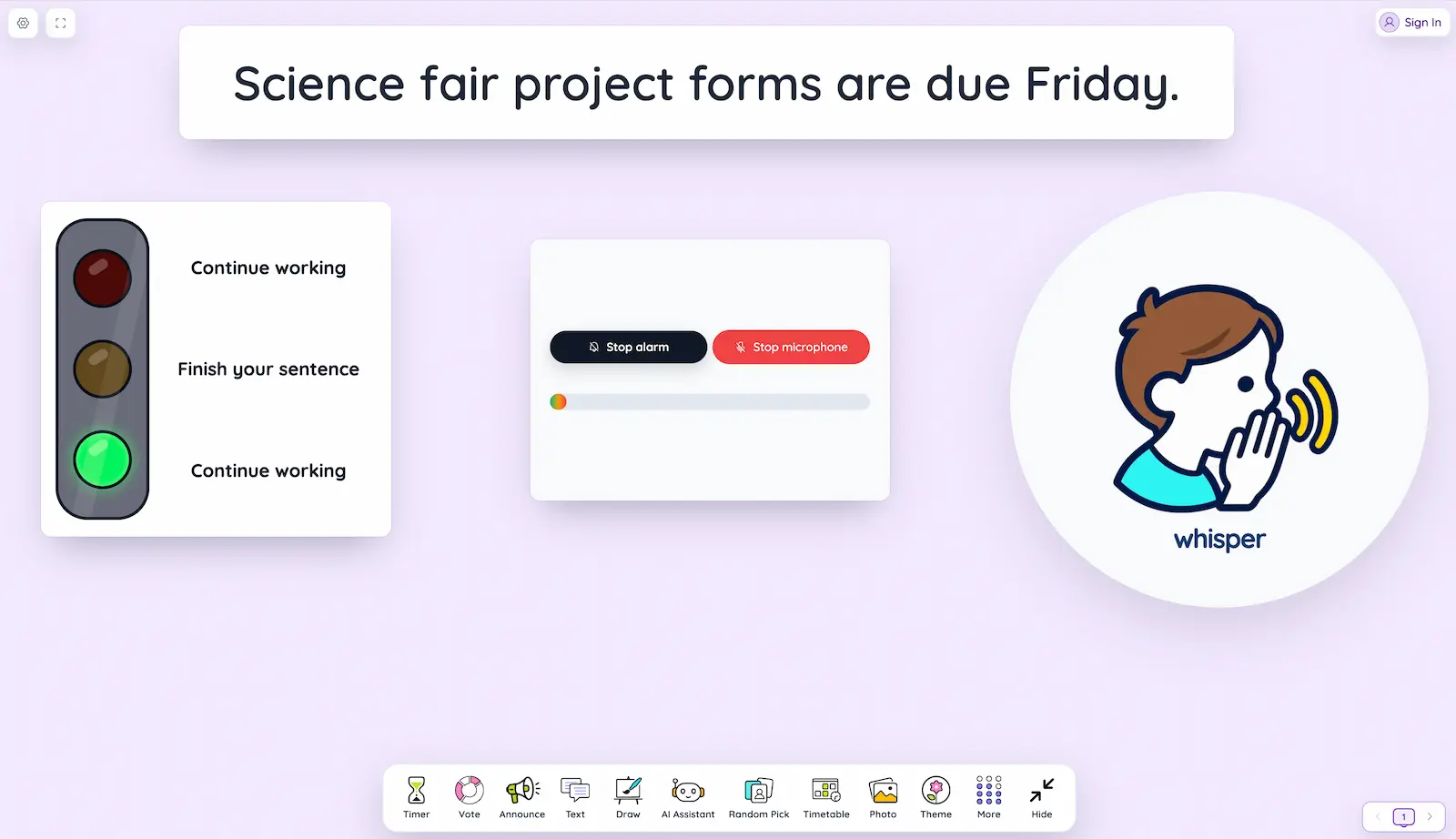
Switch between red, yellow, and green and attach a message to each colour. A consistent routine might mean green for working, yellow for finishing a sentence, and red for stopping and listening.
8. Work Symbols
Displays a large visual instruction: Silence, Whisper, Ask a Neighbor, or Work Together. Choose one symbol for the current activity so the expectation is readable from across the room.
9. Sound Level Monitor
Uses microphone permission to visualize volume, with adjustable sensitivity, an alert, and an optional limit counter. It measures intensity and does not record or save classroom audio. Use it as self-regulation feedback, not punishment.
10. Announcement
Shows a large static message or moving ticker with adjustable type, colour, direction, and speed. It works for a deadline, room change, celebration, safety instruction, or entry message.
Instructions, explanation, and teaching materials
11. Rich Text Notes
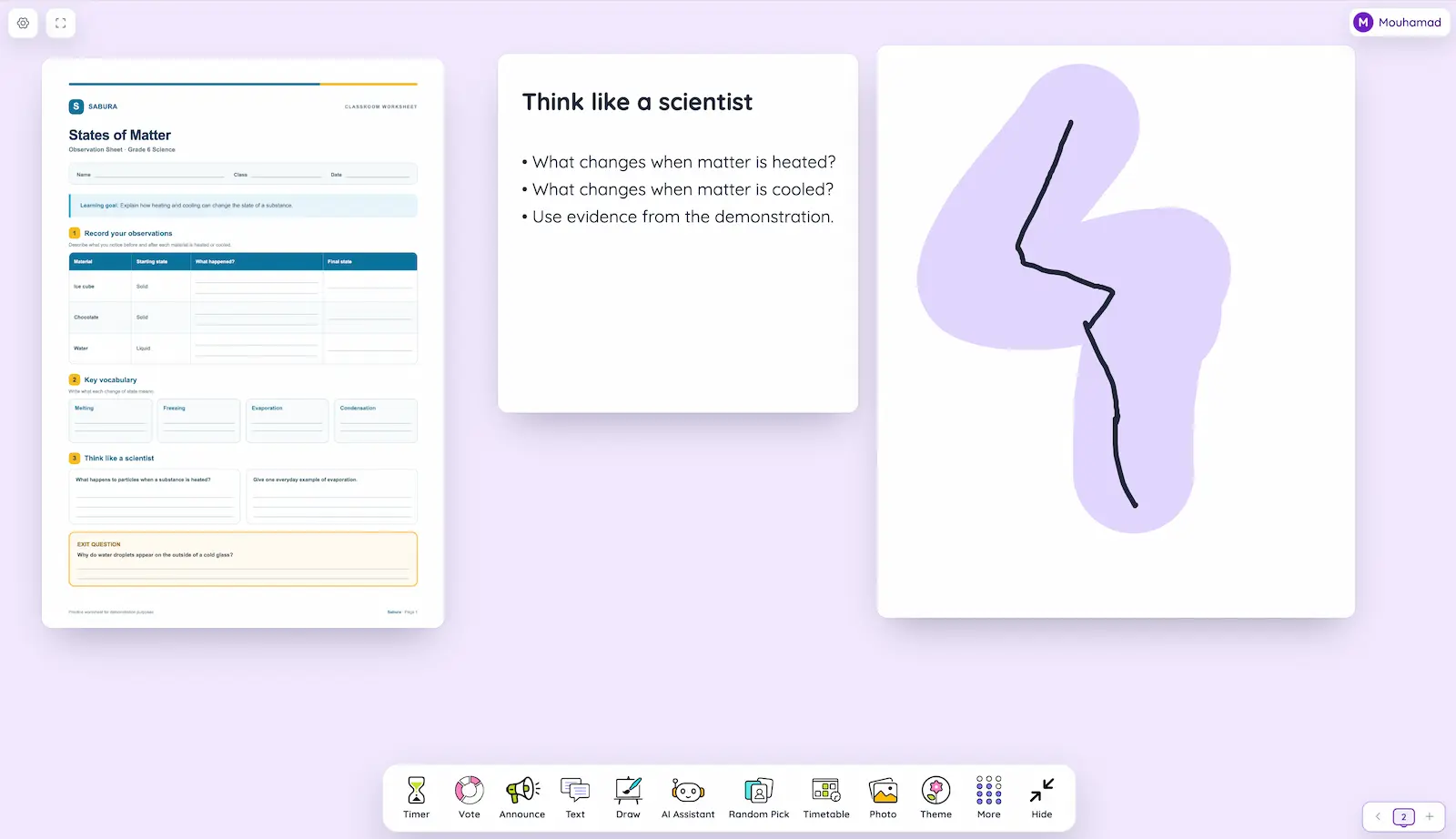
Create one or more formatted text windows for objectives, success criteria, task steps, vocabulary, sentence stems, homework, or model answers. Short numbered instructions are easiest to scan from the back of the room.
12. Digital Whiteboard
Draw with pen, stylus, or highlighter; add lines, arrows, rectangles, and circles; erase, undo, and redo; and choose plain, lined, grid, dotted, or music backgrounds. The board can also be expanded and shared by QR code.
13. Photo Display
Places an image in a resizable window. Use it for maps, artwork, diagrams, historical sources, scientific photographs, student work, or an image prompt.
 14. Canva
Connect your Canva account, choose a presentation from the gallery, and show it beside your other classroom tools. Each deck opens in its own window, with resizing that preserves the slide proportions.
15. PDF Document
Opens a PDF inside the workspace with page controls. Display a worksheet, reading passage, rubric, or reference sheet beside your instructions and timer.
16. Video Player
Keeps a teaching clip on the same board. Put the viewing question in Notes before pressing play, then close the player when the clip ends.
17. Webcam Display
Shows a permitted camera feed, lets you choose a connected camera, and can flip the image. It turns a webcam or document camera into a display for books, manipulatives, handwriting, demonstrations, and models.
18. Code Embed
Loads supported iframe or embed code for simulations, interactive maps, coding sandboxes, and external activities. Keep the original link available because some services block embedding.
Participation, grouping, and assessment
19. Random Name Picker
Selects a student from a reusable list, with sound, animation, and optional removal after selection. Give everyone thinking time first so random choice broadens participation without becoming a surprise test.
20. Group Splitter
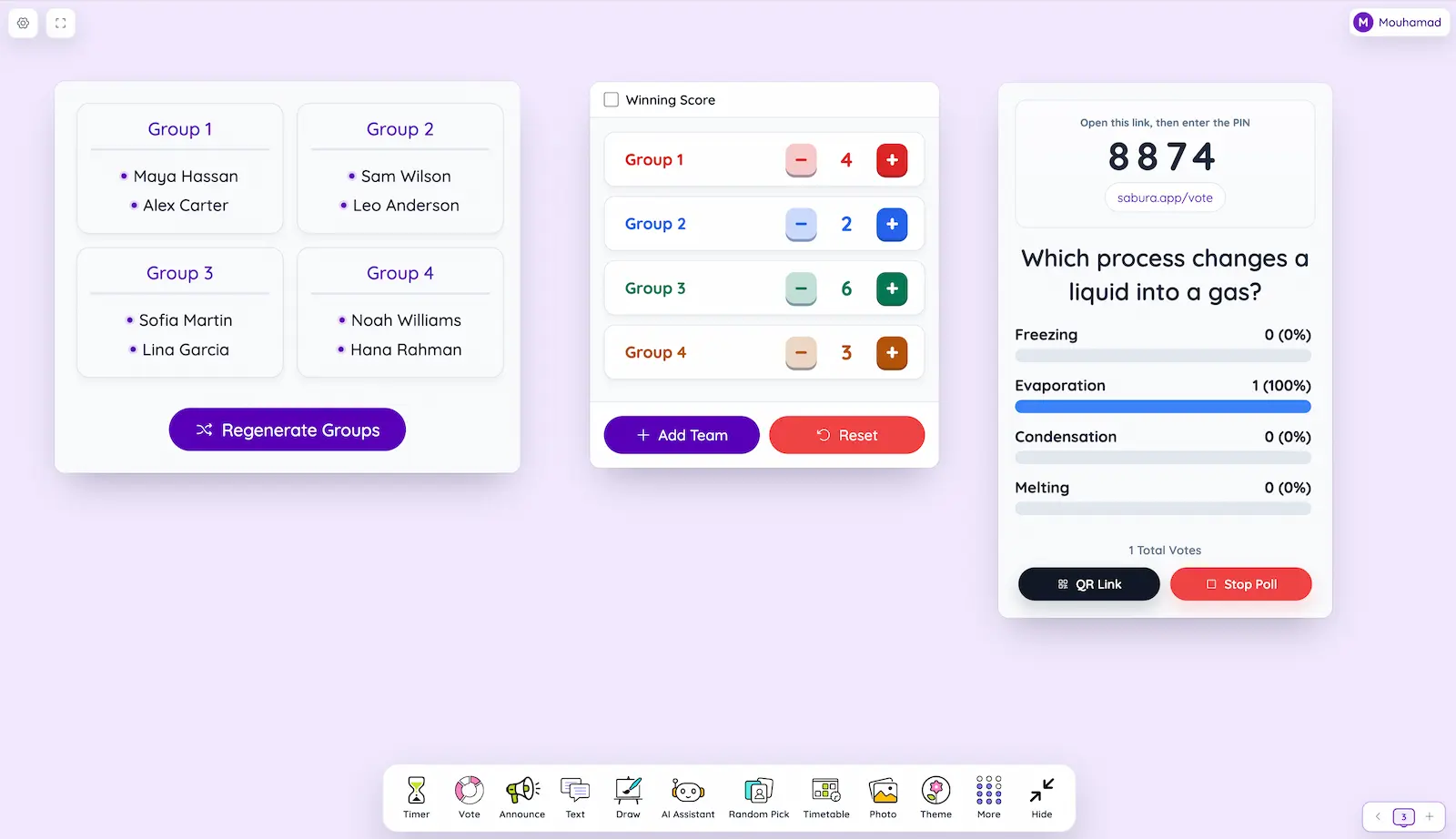
Divides a list into a chosen number of random teams. It is a fast starting point for stations, practical work, projects, reading circles, and peer review; the teacher can still adjust the result for access and balance.
21. Interactive Scoreboard
Tracks points for several teams and can use a winning target. Reward explanation, listening, improvement, and collaboration—not speed alone.
22. Live Vote
Creates a multiple-choice poll with a join PIN or QR link and live results. Use it for predictions, misconceptions, class decisions, feedback, or exit questions.
23. Attendance
Creates a session, searches a class list, records present, absent, late, or excused status, and keeps saved history. Optional recognition rewards support positive moments during registration.
24. Seats
Create a seating grid from a saved list or entered names. Drag to move or swap students, lock seats, and shuffle the remaining students. Available on Free, along with every other classroom tool. Choose your rows and columns in Settings. Locked students stay in place during Shuffle and can still be moved manually. Seats remains available on Free after the trial ends.
25. QR Code Generator
Turns a web address into a code students can scan. Add a visible instruction and a short link for anyone who cannot scan it.
26. AI Teacher Assistant
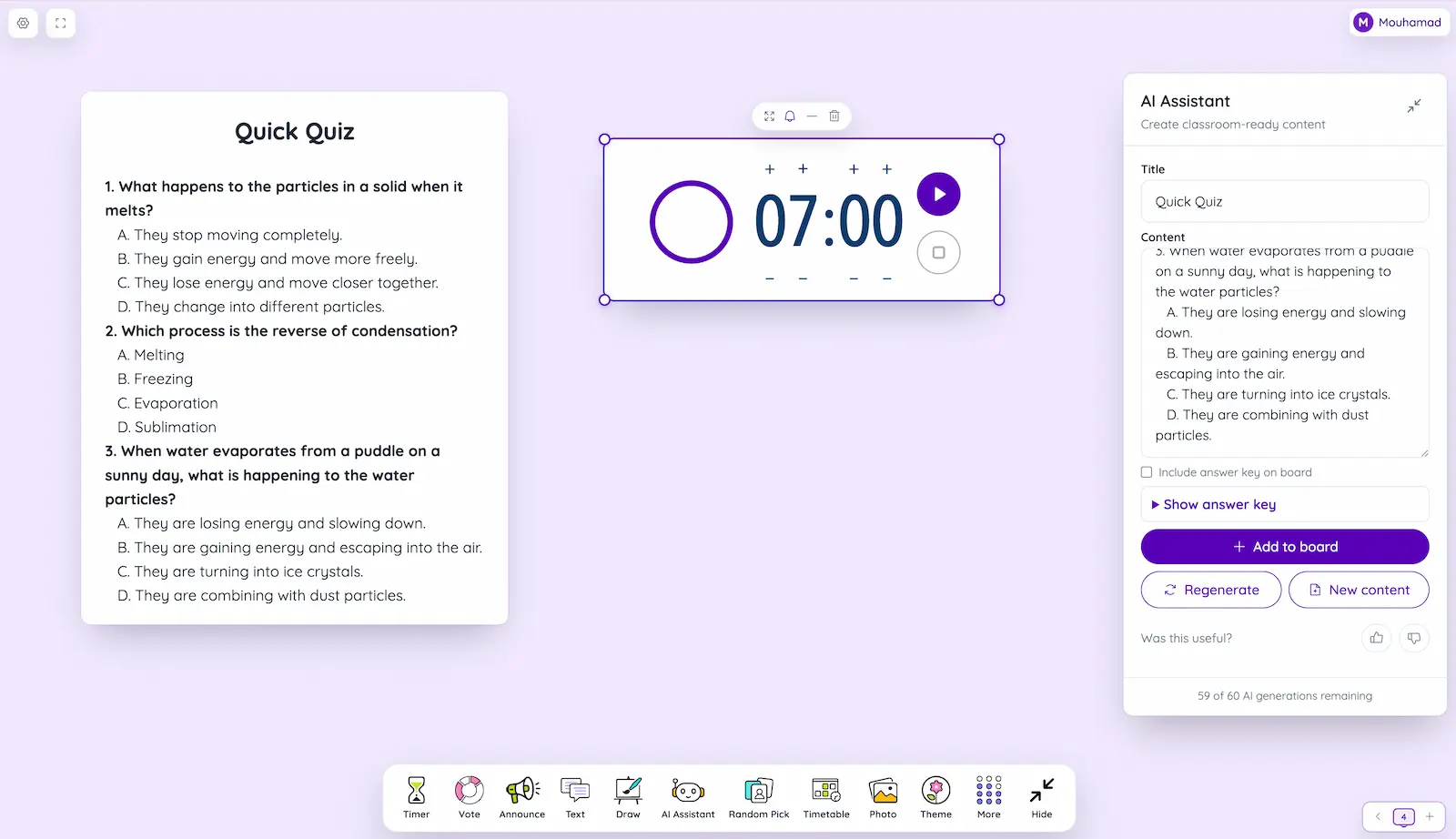
The AI Teacher Assistant drafts warm-ups, discussion questions, exit tickets, and quick quizzes from a topic, age or grade, language, and available time. You can edit the result before adding it to the board; quick quizzes can include an answer key.
Use it for a first draft, then check accuracy, level, bias, curriculum fit, and safeguarding. Do not enter student names or personal information. An account is required, and the assistant is currently designed for desktop or laptop use.
Seven workspace features that connect the tools
27. Themes and appearance
Choose a board background that supports contrast and readability.
28. Full-screen mode
Use more of the projector, television, or interactive-whiteboard area and reduce browser distractions.
29. Hide and show the toolbar
Hide the dock after arranging the lesson, then restore it when another tool is needed.
30. Multiple numbered dashboards
Move between dashboards with the numbered navigator. It shows the current number, a previous-dashboard arrow, and a plus button for adding another dashboard; it does not use dashboard or class names.
31. List Settings
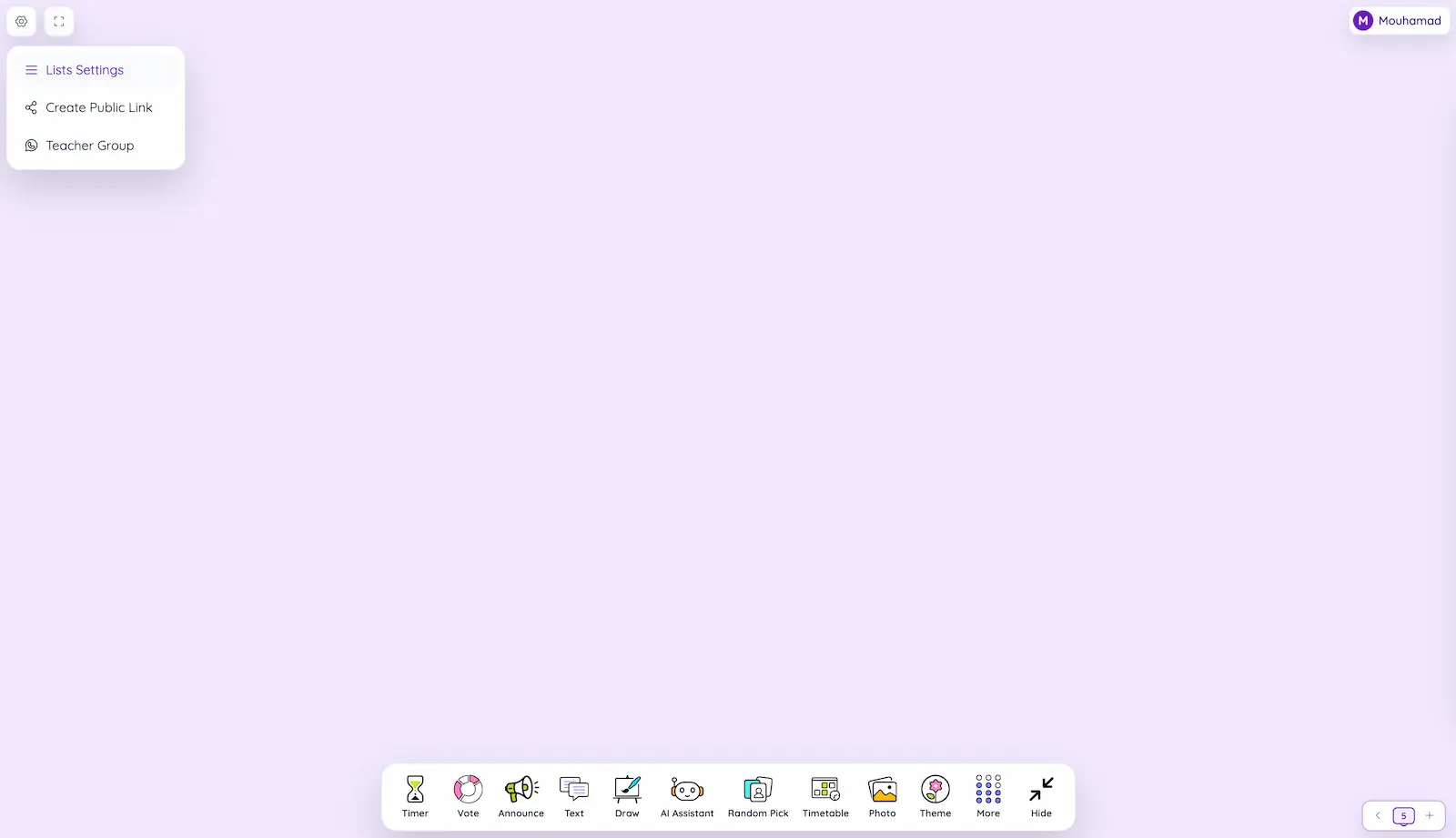
Maintain reusable student lists for Random Name Picker, Group Splitter, Attendance, and Seats.
32. Cloud saving and layout sync
Dashboard layouts, notes, and drawings save automatically when you sign in with Pro or an active 7-day Pro trial. Free dashboards are temporary and disappear on refresh or when the page closes. Legacy Free saves only its original screen. Free accounts can still save four name lists, two images, and one PDF in their account library.
33. Public live link
Live public screen sharing requires Pro or an active 7-day Pro trial. Sign in to an eligible account to create a view-only board for a second display or student device. Anyone with the link may see the shared screen, so never add confidential or unnecessary personal information.
Five practical tool combinations
- Independent work: Notes + Timer + Work Symbol.
- Cooperative learning: Group Splitter + Timer + Sound Level.
- Review lesson: Live Vote + Whiteboard + Random Name Picker.
- Text or image analysis: Photo or PDF + Notes + Timer.
- Practical demonstration: Webcam + Stopwatch + Notes.
Frequently asked questions
How many classroom tools does Sabura include?
Do I need an account?
Can several tools stay open?
Does Sabura work on a projector or interactive whiteboard?
Start with the classroom problem, then open only the tools that solve it.
Open Teacher Dashboard