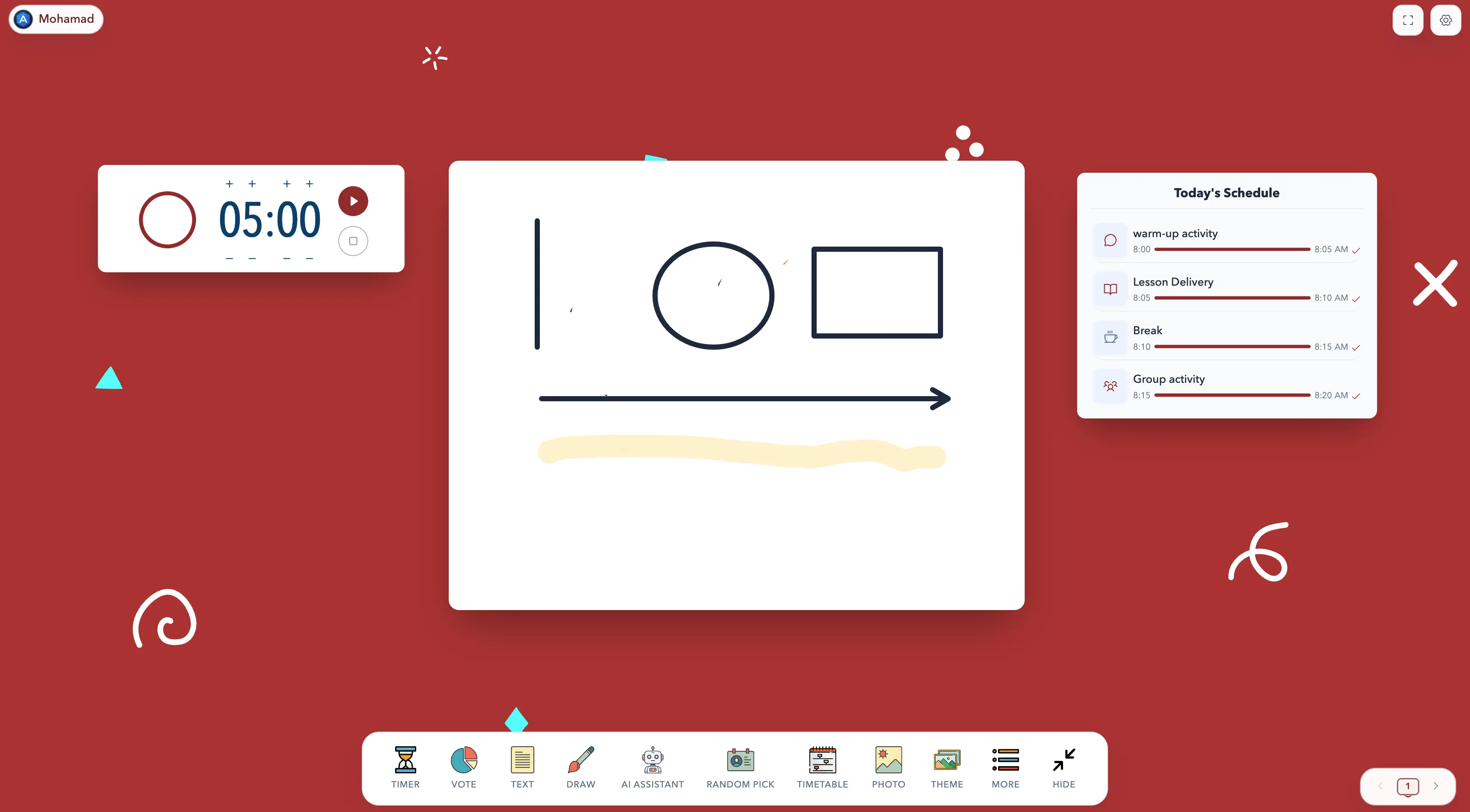
A prepared slide can show the final answer, but sometimes students need to see how an answer develops. Sabura’s Draw tool gives you a flexible space for working through a calculation, building a diagram, highlighting a key detail, or collecting ideas without leaving the Teacher Dashboard.
How to open the Draw board
- Open the Sabura Teacher Dashboard.
- Find the paintbrush icon in the bottom toolbar.
- Select Draw to open a blank board.
- Bring the board to the front, choose a tool, and begin with a mouse, touchscreen, or interactive display.

A quick tour of the toolbar
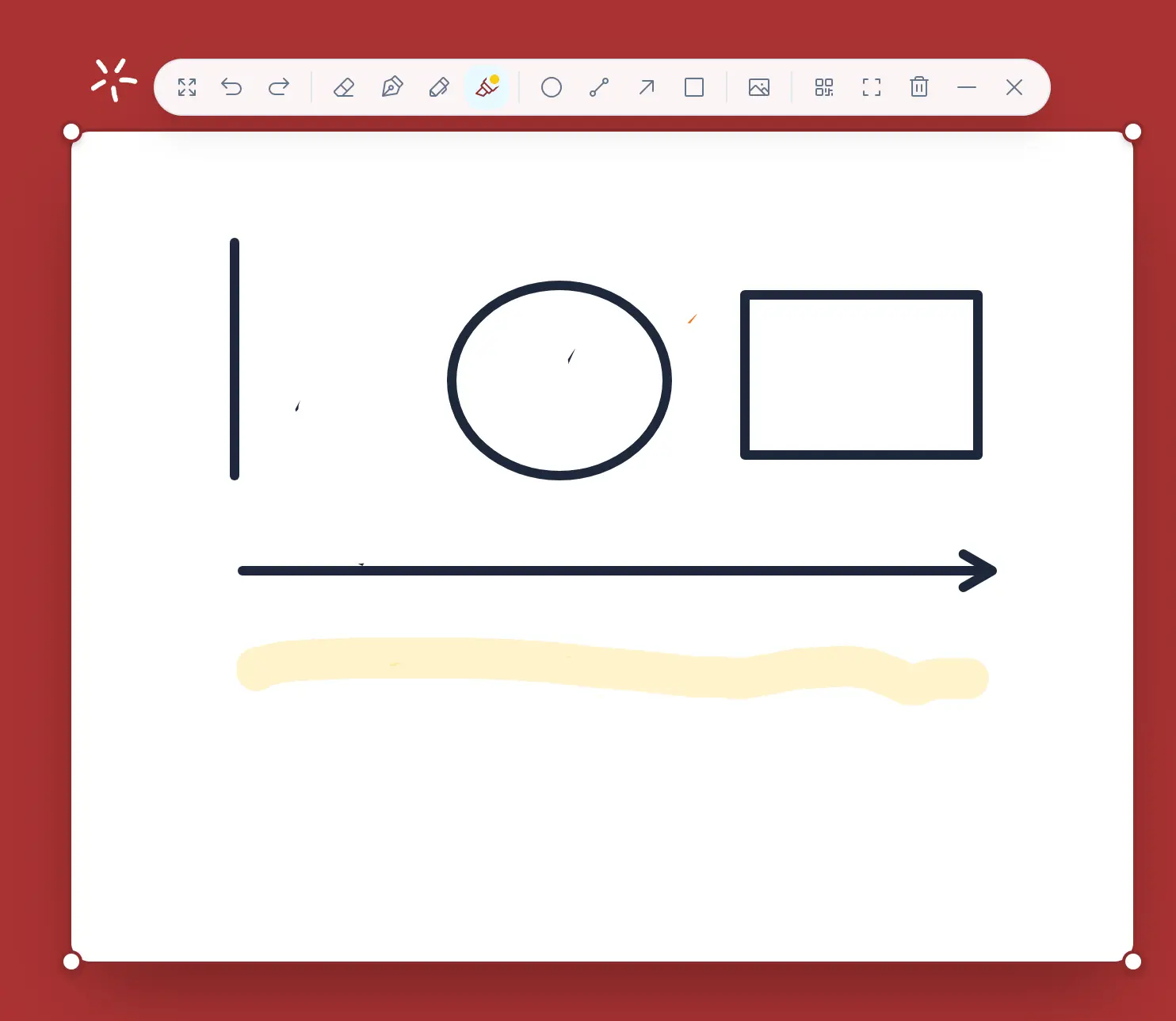
The controls across the top cover Undo, Redo, Eraser, Stylus, Pen, Highlighter, Circle, Line, Arrow, Rectangle, Backgrounds, Share QR, Fullscreen Board, Clear Board, Minimize, and Close.
On a computer, hover over an icon to see its name. On a narrow screen, scroll the tool strip horizontally to reach the remaining controls.

Pens, highlighting, erasing, and corrections
Pen
The everyday tool for handwriting, working through a problem, sketching a diagram, or recording class responses. A medium dark stroke is usually easiest to read on a projector.
Stylus
The Stylus produces a finer line than the Pen. It works well for symbols, small labels, equations, and details that would be hidden by a broad stroke.
Highlighter
The Highlighter creates a broad transparent mark, allowing the content underneath to remain visible. Use it for the number, word, or step that should hold the class’s attention.
Eraser
The Eraser removes only the area you pass over. Select it again to adjust its thickness for small corrections or faster clearing.
Undo and Redo
Undo steps back through recent board actions. Redo restores an action if you change your mind. Together they make it possible to correct one mark without rebuilding the explanation.
Choose colors and line thickness
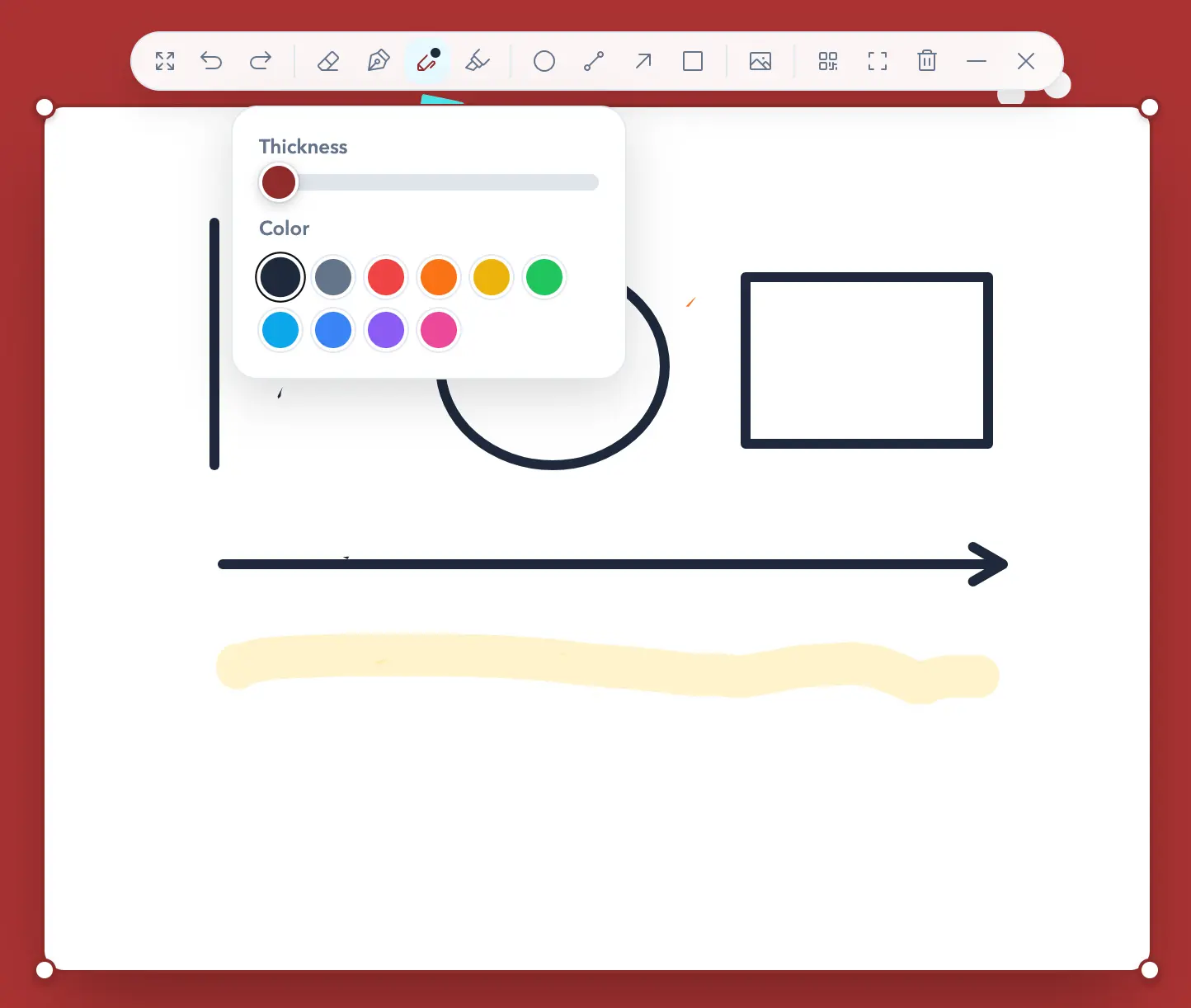
Select a drawing or shape tool, then select the active tool again to open its settings. The panel includes a Thickness slider and ten classroom-friendly colors. Sabura remembers these settings separately, so a dark Pen, blue Stylus, yellow Highlighter, and red Arrow can remain ready as useful presets.
Create clear shapes
- Circle: group an idea, mark an answer, or form part of a diagram. Dragging in different directions also creates ovals.
- Line: add a number line, a divider, a match between two items, or part of a graph.
- Arrow: direct attention, label a diagram, or show sequence and cause-and-effect.
- Rectangle: frame a rule, final answer, category, or process stage.
Drag from the starting point to the endpoint. Sabura previews the shape while you move and places it when you release.
Use the right background for the task
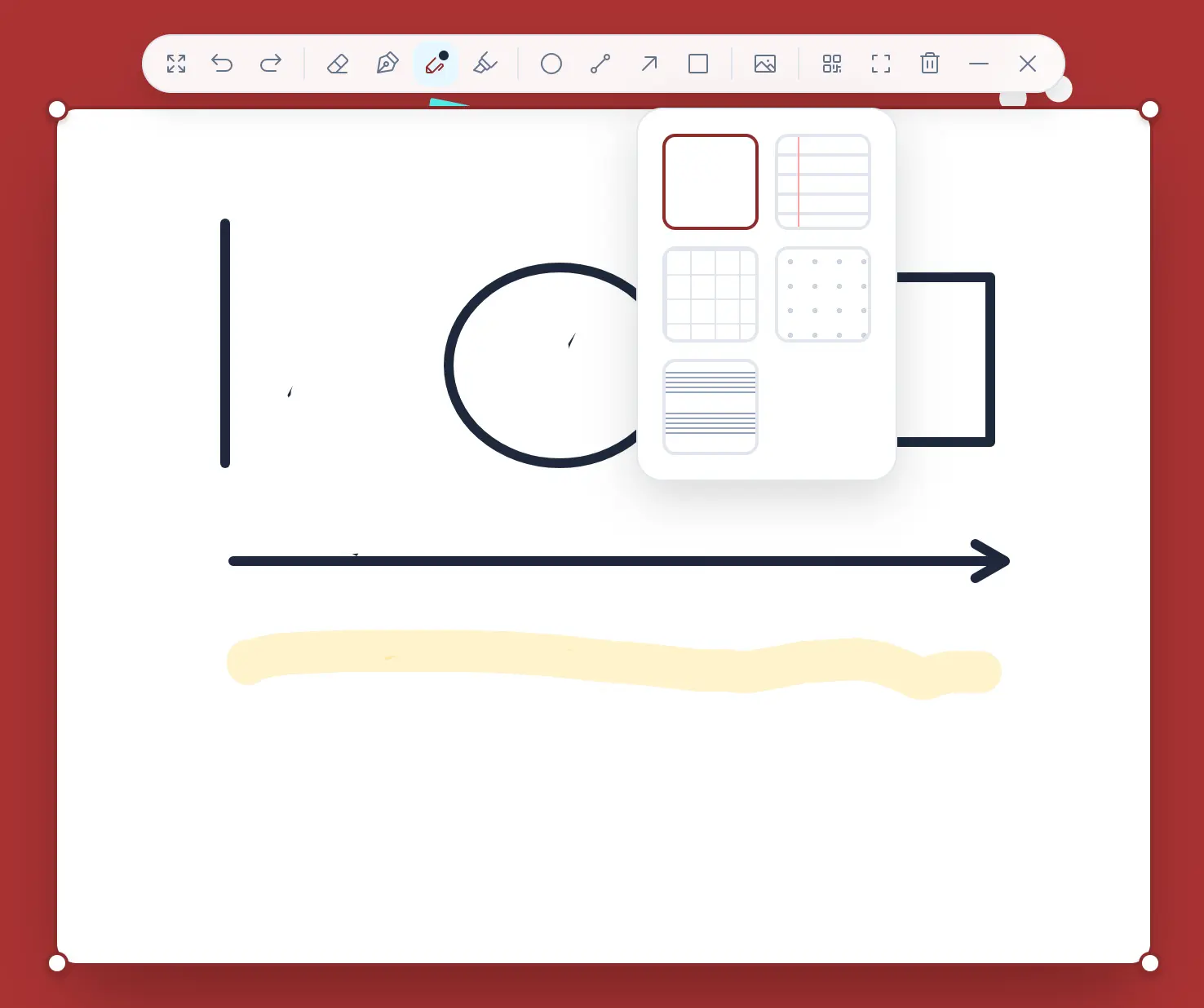
Select Backgrounds and choose one of five surfaces:
- Plain: general explanations and free-form diagrams.
- Lines: handwriting, sentences, spelling, and aligned notes.
- Grid: graphs, coordinates, arrays, geometry, and place value.
- Dots: flexible visual planning and concept maps.
- Music: notation, rhythm, and short music examples.
You can change the background after drawing begins without removing the marks already on the board.
Give students a copy with Share QR
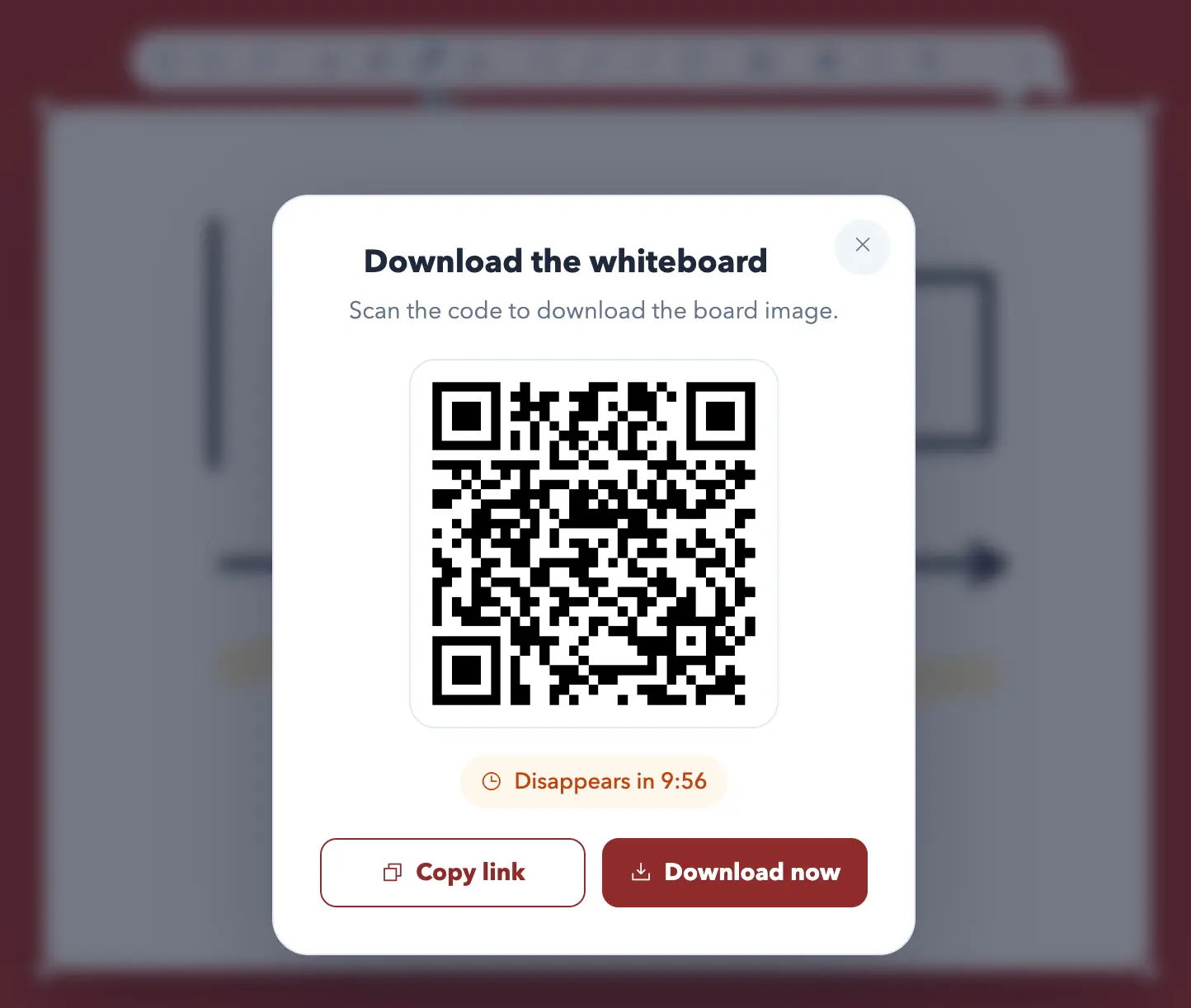
When the explanation is complete, select Share QR. Sabura creates a PNG containing the current drawing and selected background, then displays a QR code that students can scan to download the image.
- Finish the part of the board you want students to keep.
- Select the QR icon in the Draw toolbar.
- Ask students to scan the code and open the download.
- Leave the window projected until everyone is finished.
The teacher can also select Copy link to send the download URL through a class platform, or Download now to save the image directly. The temporary link remains available for 10 minutes, with a visible countdown. Generate a new QR code if it expires.
Move, resize, minimize, and go full screen
Drag the four-arrow handle to move Draw around the workspace. Use the corner handles to resize it; the content scales with the board instead of being cropped. Select Minimize when you want to clear space without intentionally deleting the drawing, or Fullscreen Board when the explanation should become the main focus.
One practical layout places Draw in the centre, a five-minute Timer on one side, and the lesson Schedule on the other. Students can see the task, the available time, and what comes next without switching screens.
Saving, clearing, and closing
- Save: Dashboard layouts, notes, and drawings save automatically when you sign in with Pro or an active 7-day Pro trial. Free dashboards are temporary and disappear on refresh or when the page closes. Legacy Free saves only its original screen.
- Clear Board: erases the drawing after confirmation while keeping Draw open.
- Minimize: temporarily hides the drawing area without intentionally deleting it.
- Close: erases the current drawing and closes the window after confirmation. Minimize instead if you may need the work again.
Five useful classroom routines
- Model a solution: use Pen for the main working, Highlighter for the step students often miss, and an Arrow to show movement or change.
- Build a concept map: place key ideas in Circles or Rectangles and connect them as the class contributes.
- Sketch a science diagram: use shapes for structure and the Stylus for small labels.
- Practise notation: switch to lined, grid, or music backgrounds to suit the subject.
- Share before clearing: display the QR code, allow time for downloading, and only then clear the board for the next activity.
Open Draw, try one shape and one background, then generate a QR code for your first short explanation.
Try the Draw Board